

Description
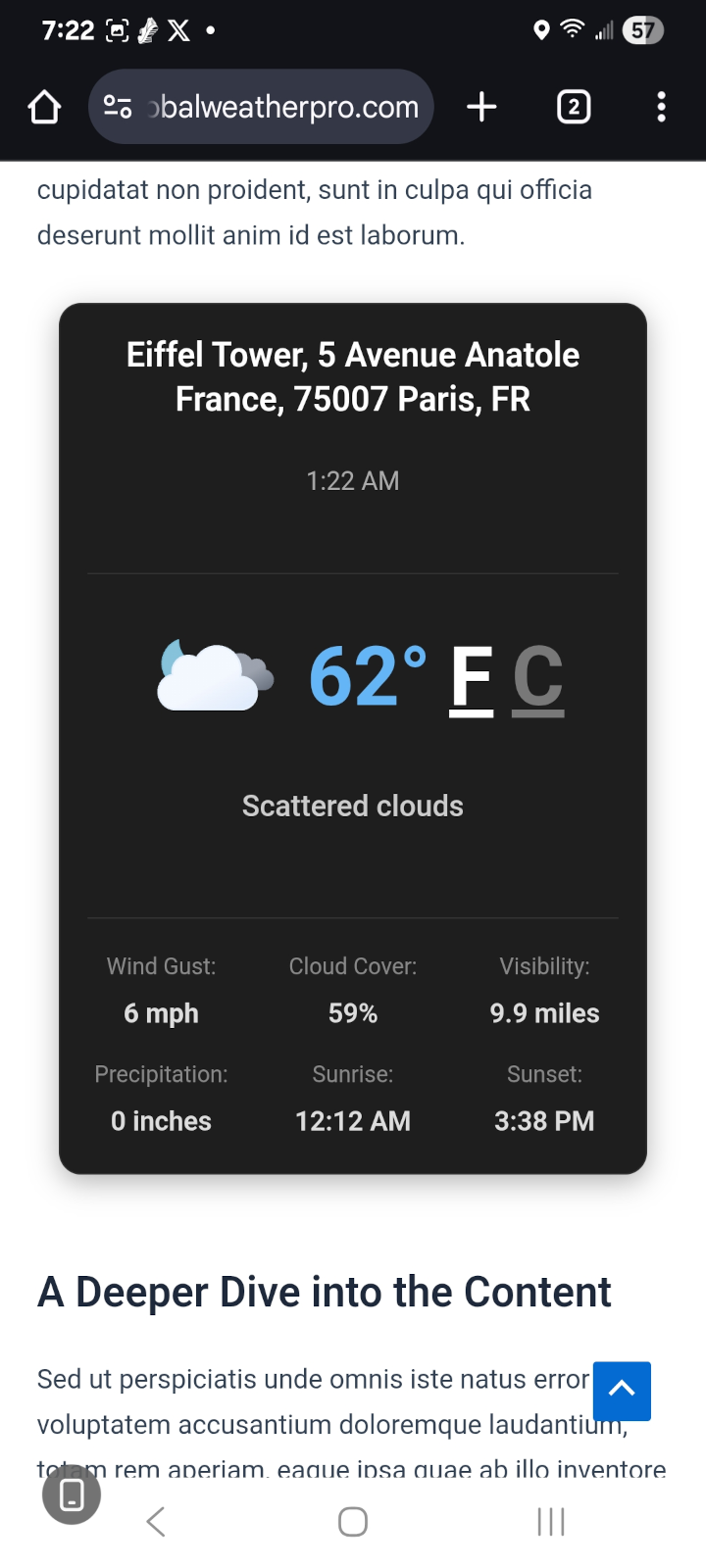
Global Weather Pro is a free WordPress weather widget plugin that displays accurate weather forecasts and critical severe weather alerts for any location in the world. It gives you three ways to put weather on your WordPress site: a comprehensive header widget, a compact sidebar widget, and a native Weather Widget block for the block editor and Full Site Editing themes. Effortlessly display current weather conditions, detailed 7-day forecasts, air quality, and severe weather alerts to keep your visitors informed and engaged.
The plugin also ships stunning, AI-generated animated images for all 60+ WeatherAPI weather conditions, displayed in the header widget. Make the widgets your own with 18 professional typefaces, and self-host every one of them with a single click for a fully Google-free, privacy-friendly setup.
All weather data and alerts are sourced from WeatherAPI, a well-known and trusted weather provider, ensuring reliable and professional-grade forecasts you can count on. Global Weather Pro handles all API communications through our dedicated service, meaning you get reliable data from top providers like WeatherAPI without needing to sign up for, manage, or pay for your own weather API key.
Check out the live demos to see both widgets in action: Sidebar Demo
Header Demo
Features:
- Critical Weather Alerts: Keep your audience safe and informed with timely notifications for severe weather events, sourced directly from WeatherAPI. Alerts are prominently displayed within the widget to ensure maximum visibility.
- No API Keys Needed: Instantly set up and deliver weather forecasts without any third-party signups or costs. Global Weather Pro handles all API communications through our dedicated service.
- Block Editor & Full Site Editing Ready: A native « Weather Widget » block works in the block editor, in Full Site Editing templates, and anywhere else blocks are allowed. The block is server-rendered and shares the exact same output pipeline as the classic widgets and shortcodes, so the weather block, the widget, and the shortcode all produce identical results.
- Per-Block Location & Theme Overrides: Each Weather Widget block can override the site-wide location and color theme, so you can show local weather for a different city on a different page or template without touching the global settings. Blocks with no override simply inherit your saved settings.
- Responsive on Every Screen: Both widgets adapt to the space they are given. On phones the header widget reflows into a single-column card that opens collapsed, so the current conditions are visible immediately and the full parameter readout and forecast strips are one tap away.
- Dual Widget Design: Comes with two specialized widgets, one designed for prominent header placement and another optimized for sidebars, ensuring a perfect fit for your theme’s layout.
- Professional Dark & Light Themes: Choose between a rich, innovative Dark Mode featuring a slate-based palette with frosted glass effects and cyan accents, or a clean, polished Light Mode, both designed for a modern weather app aesthetic.
- AI-Generated Animations: Stunning AI-generated animated images for all 60+ weather conditions are displayed in the header of the weather widget, creating a beautiful user experience.
- Accessibility Compliant (WCAG): Built with comprehensive ARIA attributes, semantic HTML, keyboard navigation support, and reduced motion preferences for an inclusive experience for all users.
- Detailed Hourly & Daily Forecasts: Provide a true, 24-hour, hour-by-hour forecast and a 7-day forecast. Display key metrics like temperature, chance of rain, humidity, UV index, air quality, and more.
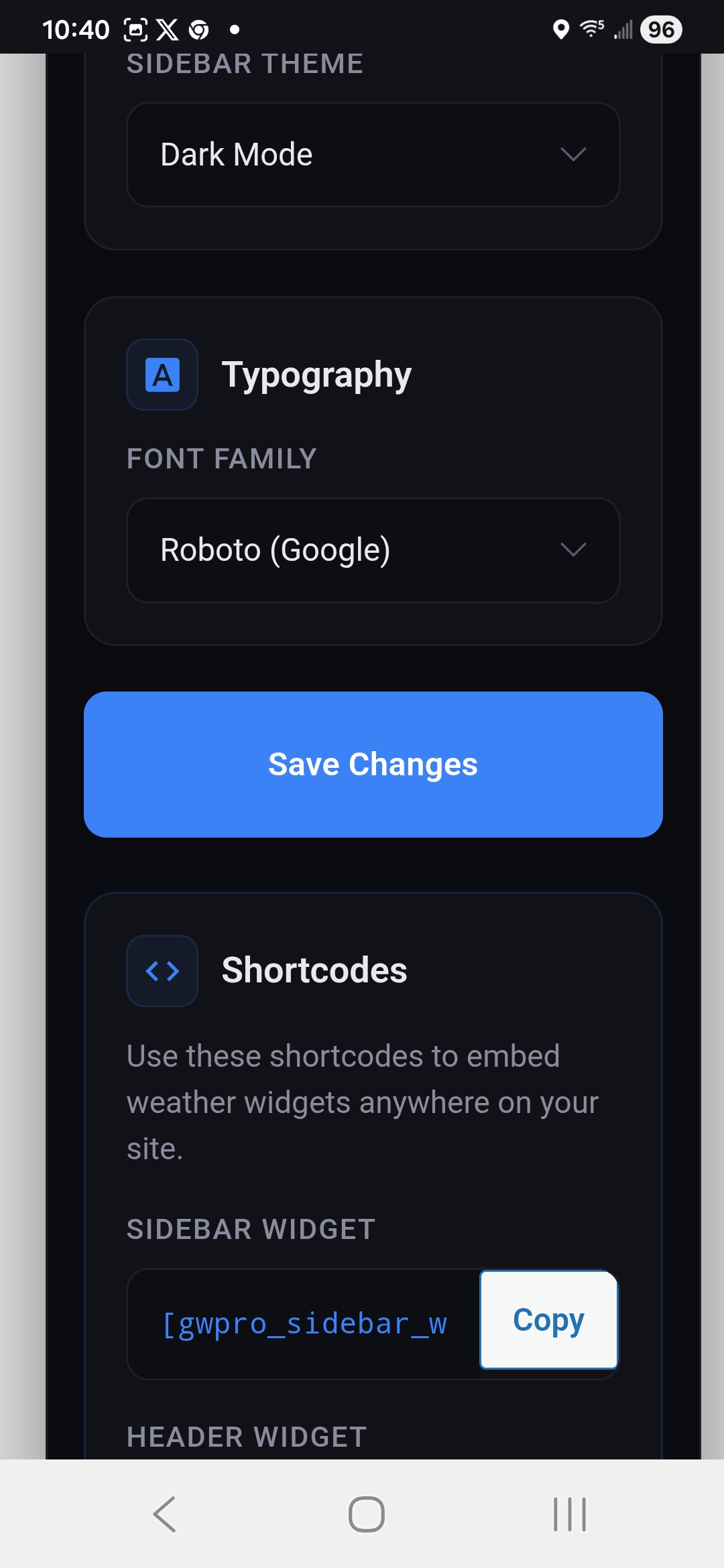
- Shortcode Support: Includes separate, reliable shortcodes for both the header and sidebar widgets ([gwpro_header_weather] and [gwpro_sidebar_weather]) for easy embedding anywhere on your site.
- Flexible Placement (Blocks, Widgets & Shortcodes): Seamlessly add weather to your header, footer, or sidebar using the block editor, the classic Widgets screen, or a shortcode in any post or page.
- Font Customization: Personalize the widget’s appearance by choosing from 18 professional Google Fonts organized into Sans-Serif, Serif, Monospace, and Display categories, including Roboto, Open Sans, Inter, Montserrat, EB Garamond, Merriweather, Playfair Display, Roboto Mono, Poppins, and more. The widget layout stays pixel-consistent no matter which font you choose.
- Privacy-First Font Self-Hosting: Prefer not to link your site to Google’s Font API? One click on the settings page downloads all 18 font families directly to your own server (each with its license file included), so visitor browsers never contact Google Fonts. Any font not yet downloaded automatically falls back to Google’s CDN, so nothing ever breaks.
Whether you run a WordPress blog, a business website, or a community portal, Global Weather Pro makes it easy to share up-to-date local weather with your audience.
Third-Party Services
Global Weather Pro API
-
Fetches weather data.
-
No personal data collected.
-
Accessed at:
-
Privacy Policy: https://globalweatherpro.com/gwpro-privacy-policy
WeatherAPI
- Provides weather forecasts and alerts.
- Location data (entered by site owner) sent; no personal data collected.
- Accessed at:
- Weather condition icons served from: https://cdn.weatherapi.com/weather/
- Privacy Policy: https://www.weatherapi.com/privacy.aspx
Geoapify API
- Provides geolocation services.
- No personal data collected.
- Accessed at: https://api.geoapify.com/v1/geocode/search
- Privacy Policy: https://www.geoapify.com/privacy-policy/
Google Fonts API
– This service is used to load and display the custom font selected in the widget settings, but only for fonts that have not yet been self-hosted. Once a font is downloaded via Settings > « Download & Self-Host All Fonts, » it is served entirely from your own server and visitor browsers never contact Google.
– Personal Data: When a font loads from Google’s CDN, Google may collect data such as visitor IP addresses in order to serve the font files. Self-hosted fonts send no visitor data to Google.
– Access: Visitor browsers access https://fonts.googleapis.com (stylesheet) and https://fonts.gstatic.com (font files) only while a selected font is not self-hosted. When the site owner runs the one-click download tool, these same two endpoints are contacted once, server-side by your WordPress site, never by your visitors, to fetch the font files.
– Privacy Policy: Refer to Google’s privacy policy here: https://policies.google.com/privacy.
Third-Party Fonts & Licenses
This plugin offers 18 Google Fonts as font-family options. When downloaded via Settings > « Download & Self-Host All Fonts, » the actual font files are saved to this plugin’s own /uploads/ directory (one subfolder per font, each including a LICENSE.txt). Both licenses below permit free use, modification, and self-hosted redistribution:
- Apache License, Version 2.0 (Roboto, Roboto Mono) — http://www.apache.org/licenses/LICENSE-2.0
- SIL Open Font License, Version 1.1 (Open Sans, Inter, Lato, Source Sans Pro, Raleway, Montserrat, Nunito, EB Garamond, Merriweather, Playfair Display, Lora, Crimson Text, Source Code Pro, Fira Code, Poppins, Quicksand) — https://scripts.sil.org/OFL
Until a given font is self-hosted, it is instead loaded live from Google Fonts under the same license terms; see « Google Fonts API » under Third-Party Services above for that data flow.
Captures d’écran


Blocs
Cette extension offre 2 blocs.
- Global Weather Pro Header Displays the comprehensive weather header: current conditions with AI-generated animations, hourly and 7-day forecasts, air quality, and severe weather alerts.
- Global Weather Pro Sidebar Displays the compact weather sidebar widget: current conditions, forecast, and severe weather alerts in a narrow layout.
Installation
- Upload the plugin files to
/wp-content/plugins/global-weather-pro, or install the plugin through the WordPress plugin screen. - Activate the plugin through the ‘Plugins’ menu.
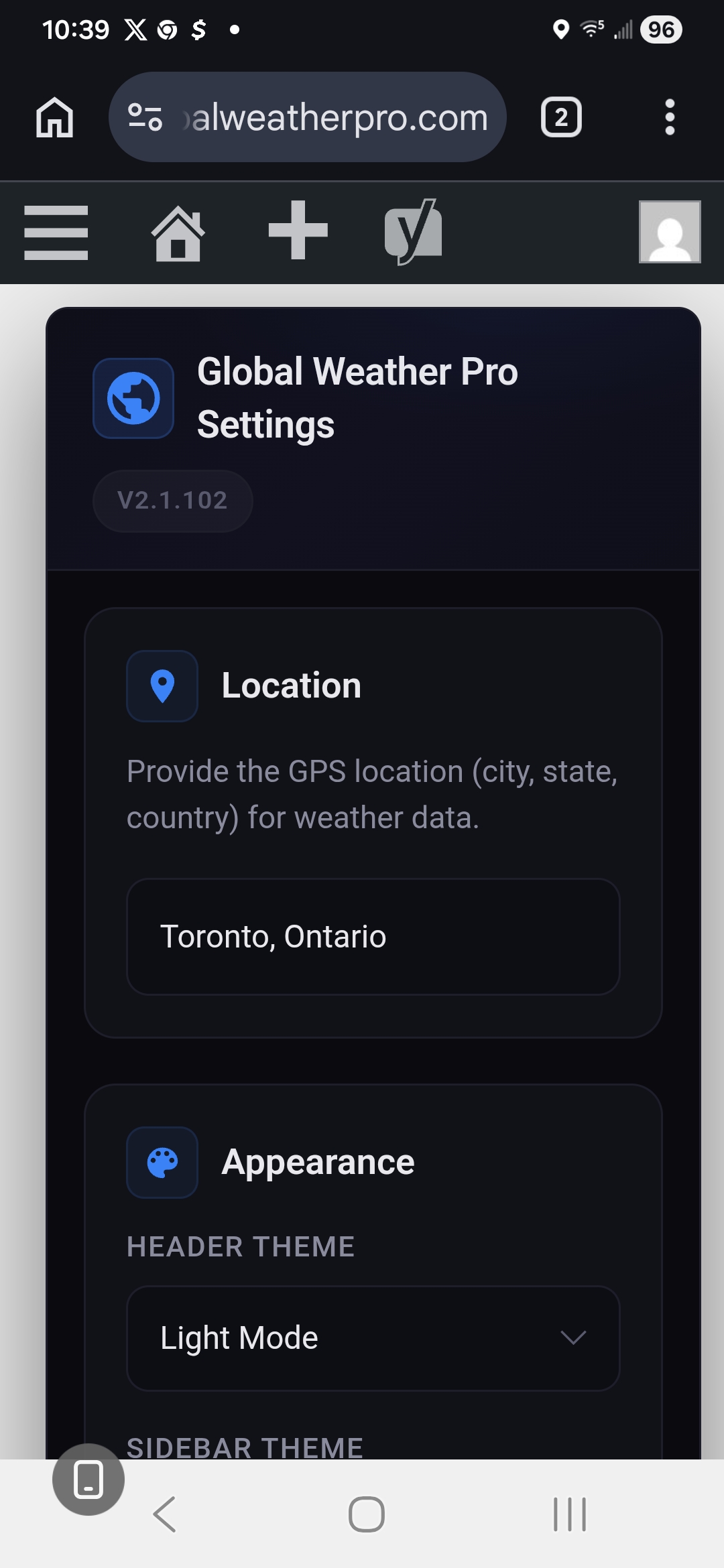
- Go to Settings > Global Weather Pro and save the location you want the weather widget to display.
- Add the weather widget to your site using whichever method suits your theme:
- Block editor or Full Site Editing theme: Edit any post, page, or template, click the block inserter, search for « Weather Widget, » and place the block. In the block sidebar you can choose the header or sidebar layout and, optionally, override the location and color theme for that block only.
- Classic theme: Navigate to « Appearance » > « Widgets » and add either the « Global Weather Pro Header » or « Global Weather Pro Sidebar » widget to your desired widget area.
- Shortcode: Use [gwpro_header_weather] to display the header widget, or [gwpro_sidebar_weather] to display the sidebar widget, anywhere shortcodes are accepted.
FAQ
-
How do I add a weather widget to my WordPress site?
-
There are three ways, and all of them produce the same widget.
Block editor or Full Site Editing theme: open any post, page, or site template, click the block inserter, and search for « Weather Widget. » Choose the header or sidebar layout in the block settings sidebar.
Classic theme: navigate to « Appearance » > « Widgets » in your WordPress admin panel and add either the « Global Weather Pro Header » or « Global Weather Pro Sidebar » widget to your desired location, such as your header, footer, or sidebar.
Shortcode: embed the widgets directly into your posts and pages using [gwpro_header_weather] for the header widget or [gwpro_sidebar_weather] for the sidebar widget. Note that the original shortcode, [gwpro_global_weather_pro], now functions as an alias for the sidebar widget shortcode for backward compatibility, so any existing instances of the old shortcode continue to work without issue.
-
Does this weather widget work with Gutenberg and block themes?
-
Yes. Global Weather Pro registers a native « Weather Widget » block that works in the block editor, inside Full Site Editing templates and template parts, and anywhere else blocks are allowed. The block is server-rendered and reuses the same output pipeline as the classic widgets and the shortcodes, so there is one source of truth for the markup, the scripts, and the weather data.
This matters on a block theme, because block themes have no « Appearance » > « Widgets » screen at all. On those themes, use the block (or a shortcode block) rather than the classic Widgets screen.
-
Can I show weather for more than one location on the same site?
-
Yes, using the block. Each Weather Widget block can set its own location, which overrides the location saved in the plugin settings for that block only. A block with no location set simply inherits your global setting. The same applies to the dark and light color themes, so a block placed in a dark page template can differ from the site-wide default.
The classic widgets and the shortcodes always use the location saved under Settings > Global Weather Pro.
-
Do I need a weather API key?
-
No. Global Weather Pro routes all API communication through our own dedicated service, so you never have to sign up for, manage, renew, or pay for a weather API key of your own. Install the plugin, save a location, and the forecasts and severe weather alerts start working immediately.
-
Does Global Weather Pro use AI to generate the forecasts?
-
No, and the distinction matters. Global Weather Pro uses artificial intelligence for its visual layer only. Every one of the 60+ weather conditions reported by WeatherAPI (condition codes 1000-1282) has its own AI-generated animated image, displayed in the header of the weather widget so the animation always matches the reported condition, including day and night variants for clear skies.
The forecasts, air quality readings, and severe weather alerts themselves are not AI-generated or AI-predicted. They come directly from WeatherAPI, a professional meteorological data provider. Your visitors see AI-created artwork paired with real, trusted weather data.
-
Do the AI weather animations slow down my site?
-
No. All AI-generated animation files are bundled with the plugin and served from your own site, so displaying them requires no third-party image service, no AI API key, and no per-request AI costs. Nothing is generated on the fly at page load. The artificial intelligence work was done in advance, so the animations add no latency.
-
How does the widget display severe weather alerts?
-
Severe weather alerts are sourced from WeatherAPI and displayed prominently inside the widget so visitors see them immediately. Alerts appear alongside current conditions in the header widget, the sidebar widget, and the block, and no configuration is required. Alerts for the widget’s location surface automatically whenever the provider issues them.
-
Does this weather widget work with my WordPress theme?
-
Global Weather Pro is designed to work with most WordPress themes, classic and block-based alike. If you experience any issues, please create a topic on our official WordPress support forum so our team and the community can assist you: Official Plugin Support Page
Avis
Il n’y a aucun avis sur cette extension.
Contributeurs & développeurs
« Global Weather Pro: Weather Widget for WordPress » est un logiciel libre. Les personnes suivantes ont contribué à cette extension.
Contributeurs
Traduisez « Global Weather Pro: Weather Widget for WordPress » dans votre langue.
Le développement vous intéresse ?
Parcourir le code, consulter le SVN dépôt, ou s’inscrire au journal de développement par RSS.
Historique des changements
For the complete version history (all releases), see the readme.txt revision log: https://plugins.trac.wordpress.org/log/global-weather-pro/trunk/readme.txt
2.8.0 – 2026-09-24
- Accessibility: Weather Alerts Can Now Be Opened From the Keyboard. The alert icon and the close button were plain elements labelled as buttons, so they could not be reached with the Tab key or activated with Enter or Space. They are now real buttons, and the alert list opens in a native modal dialog that holds keyboard focus, closes with Escape or a click outside it, and returns focus to the alert icon afterward. The icon also tells screen reader users how many alerts are active. Previously, clicking the alert icon in one widget also opened the alert window of the other widget when both were on the same page; each widget now opens only its own.
- Accessibility: Forecast Tabs Follow the Standard Tab Pattern. The Temperature, Rain Chance, Wind and other forecast tabs now respond to the arrow keys, Home and End. Screen readers are told which tab is selected, and each forecast panel is linked to its tab. Switching tabs in the 7-day strip no longer resets the hourly strip.
- Accessibility: Pause Control for the Condition Animation. The animated condition image loops indefinitely, and WCAG 2.2.2 requires a way to stop moving content that runs longer than five seconds. A small pause and play button now sits on the image, and the animation starts paused for visitors whose device is set to reduce motion.
- Accessibility: Screen Readers No Longer Read the Whole Widget Aloud on Load. The widget containers were marked as live regions, so a screen reader read every figure in the widget at once when the page loaded. That marking has been removed. Labels that screen readers ignored or that hid the visible text were replaced with real text. Temperatures now announce their unit, the UV reading announces its number as well as its risk level, and hourly and daily forecast icons describe the condition instead of being skipped.
- Accessibility: Sidebar Unit Toggle Is Now a Pair of Buttons. The F and C controls were links that went nowhere, and the selected unit was shown only by a text color that fell below the WCAG AA contrast minimum. They are now buttons that tell screen readers which unit is selected, have a larger touch target, and mark the selected unit with an outline as well as color. Muted text in the light sidebar theme was darkened to meet the 4.5:1 contrast ratio.
- Change: Redesigned Review Prompt. The review request is now a card in the style of the block editor, with a condition animation, follows the admin color scheme, and works on narrow screens. Choosing an option no longer reloads the page, and the close button now remembers the choice; previously the notice came back on the next page load.
- Fix: The Widget No Longer Appears Unstyled for a Moment. The light and dark widget stylesheets and the alert stylesheet were added by the widget scripts after the page had loaded, so the widget briefly appeared without its styling on every visit. WordPress now loads them with the rest of the page’s styles. On block themes, and on classic themes when the widget sits in a sidebar or in the page’s own content, they load in the page head before anything is drawn. A block’s own light or dark setting is respected.
- New: Alignment, Spacing and HTML Anchor Settings for the Blocks. The Header block can be set to wide or full width, and the Sidebar block can be aligned left, center or right with text wrapping around it. Both blocks now have margin and padding controls and an HTML anchor field, like core blocks.
- New: The Widgets Can Be Translated. Labels, tab names, button text, UV and air quality levels, alert text and status messages were written in English inside the widget scripts. They now go through the plugin’s text domain, so they can be translated on translate.wordpress.org. Weekday names and clock times now follow the site’s language setting, so a German site shows « Do, 19:05 » rather than « Thu, 7:05 PM ». Weather condition descriptions still come from the weather data service in English.
- Change: Widget Text Can Be Selected and Copied. Text selection was turned off for the whole header widget. It is now turned off only on the tab and toggle buttons, where a double click would otherwise highlight the label.
2.7.15 – 2026-09-16
- Fix: The Block Never Appeared in the Block Inserter. The block registration code looked for its block definition, editor script, and editor stylesheet in a folder that was not included in the plugin package. WordPress skips a block whose definition file is missing without reporting any error, so searching the inserter returned nothing, and the block described in the 2.7.14 documentation could not actually be added to a page. The block definitions and editor script now ship with the plugin.
- Fix: Blocks in Block Theme Templates Loaded Without Their Weather Data. Block themes build templates and template parts before the page head is output, which is earlier than the point where the widget scripts were registered. Weather data attached to a script that is not yet registered is discarded without warning, so the widget script loaded with no data and stopped with a « gwpro is not defined » error, and the widget stylesheet was skipped on the same pages. The scripts and styles are now registered before any widget, shortcode, or block renders, and the widget scripts fall back to their built-in error message instead of stopping if the data is ever missing.
- Change: Separate Header and Sidebar Blocks. The single « Weather Widget » block with a layout setting has been replaced by two blocks, « Global Weather Pro Header » and « Global Weather Pro Sidebar, » named to match the classic widgets. Both appear when the inserter is searched for « weather widget, » « weather, » « forecast, » or « Global Weather Pro, » and both keep the per-block location and color theme overrides in the block settings sidebar.
- Change: Each Block Can Be Placed Once Per Page. The widgets rely on fixed element IDs, so two copies of the same block on one page would interfere with each other. The editor now prevents a second copy from being inserted. A header block and a sidebar block can still share the same page.
- Change: Editor Placeholder Instead of a Blank Preview. The weather display is assembled in the visitor’s browser, a step the editor does not perform, so a live preview inside the editor would render empty. The editor now shows a labeled placeholder summarizing the block’s location and theme settings, and the live weather appears on the published page.
- Documentation: Block Instructions Updated. The description, installation steps, and FAQ now refer to the two blocks by name. If a page or template shows a notice that it contains an unsupported block, that content was saved with the earlier « Weather Widget » block. Remove it and insert the Global Weather Pro Header or Sidebar block in its place.
2.7.14 – 2026-09-12
- Documentation: The Weather Widget Block Is Now Documented. The plugin has registered a server-rendered « Weather Widget » block for the block editor and Full Site Editing templates since 2.7.0, but no part of the readme ever mentioned it. The installation instructions and the first FAQ entry both directed site owners to « Appearance » > « Widgets, » a screen that does not exist on a block theme, so anyone running a modern theme was told to follow steps they could not follow and had no way of discovering the block that would have worked. Blocks are now listed alongside widgets and shortcodes everywhere placement is described, with a note that block themes have no classic Widgets screen.
- Documentation: Per-Block Location and Theme Overrides Are Now Documented. Each block instance can override the site-wide location and color theme, which is what makes it possible to show weather for different cities on different pages. This capability was present but undocumented, so in practice no one knew to use it.
- Documentation: Plugin Headers Completed. Added the missing « Requires PHP » header to readme.txt, and added « Plugin URI », « Author URI », « Text Domain », « Domain Path », « Requires at least », and « Requires PHP » to the main plugin file. The text domain in particular was being passed to « wp_set_script_translations() » for the block editor script without ever being declared, which is the header WordPress uses to locate translation files.
- Fix: Description Rendered Incorrectly on the Plugin Directory Page. The opening paragraph of the Description began with a bold marker that was never closed, so the plugin’s single most prominent block of copy rendered either entirely bold or with the markers visible as literal characters.
- Fix: Removed a Changelog Entry for a Release That Does Not Exist. An entry labeled 8.9.8 sat at the top of the changelog, above 2.7.11, describing a stable tag change to a version number the plugin has never had. It was the first thing anyone opening the Changelog tab would read.
For older releases, see changelog.txt.